
Convert on this page
Upload, preview, adjust, and export without being sent to another landing page. The primary workflow is available immediately.
Free image to PowerPoint converter
Upload a PNG or JPG, place it on a widescreen slide, and download a real PowerPoint file or open it in the EditablePPT editor. No account is required and the image stays in your browser.
Add one PNG or JPG, control how it fits the slide, then download the PPTX or continue editing online.
Drop an image here
PNG or JPG, up to 20 MB. The file is processed locally in this browser.
Your image becomes a PowerPoint slide
Upload an image to inspect its exact size and crop before opening the editor or downloading the PPTX.
The source image is editable as one image object. You can move, resize, crop, replace, or layer content over it; text and shapes inside the image are not automatically separated.
Upload, preview, adjust, and export without being sent to another landing page. The primary workflow is available immediately.
Create a standard PowerPoint file that opens in Microsoft PowerPoint, Apple Keynote, LibreOffice Impress, or Google Slides.
Move and resize the source image, then add editable text, shapes, charts, tables, media, speaker notes, and additional slides.
Converting an image to an editable PPT can mean two different things. The first is putting the image into a genuine PowerPoint slide so the image itself can be moved, resized, cropped, replaced, and combined with new slide objects. The second is reconstructing every visible word, icon, chart, and shape as a separate element. This free converter provides the first result immediately and gives you an online editor for adding new editable content around the source image.
That distinction matters because a flat PNG or JPG does not contain the original font names, chart data, grouping, or layer order. Any service that claims to recover all of those details perfectly is estimating information that no longer exists in the file. EditablePPT keeps the conversion predictable: you see the crop before export, receive a valid .pptx, and know exactly which parts are editable before you invest time refining the slide.
Choose a clear image up to 20 MB. It is read locally in your browser, so this converter does not require an account or upload the source to EditablePPT servers.
Use Fit to preserve the entire image with possible background space, or Fill to cover the 16:9 slide edge to edge with a controlled crop.
Download a one-slide PPTX immediately, or open the image in the browser editor to add editable text, shapes, charts, notes, and more slides.
Editable, clearly defined
The exported file is a genuine PowerPoint presentation, but the source remains one image object. This honest capability map helps you choose between a quick slide conversion and a manual or AI-assisted element reconstruction project.
Move, resize, crop, rotate, replace, and layer the converted image inside PowerPoint or the browser editor.
Add separate text boxes, shapes, charts, tables, media, speaker notes, and extra slides after opening the editor.
Cover or replace regions with newly created editable elements. The original pixels remain part of the background image until rebuilt.
This browser-local version does not automatically turn text into text boxes or infer source values from charts.
01
PNG is usually the strongest source when the image contains slide text, user-interface screenshots, diagrams, logos, or other sharp edges. It uses lossless compression, so small letters and thin lines remain cleaner. JPG is better for photographs and can make large files smaller, but aggressive compression creates halos around type and may blur grid lines. This converter accepts both PNG and JPG files up to 20 MB, which covers common screenshots, exported slide images, scanned pages, and phone photos.
Resolution matters more than file extension once the image is on a large screen. A 600-pixel-wide screenshot may look acceptable in a browser thumbnail and visibly soften when stretched across a 1280 × 720 slide. Whenever possible, export the original design at two times its intended display size or capture a full-resolution screenshot. Avoid repeatedly saving a JPG, because each generation can discard more detail that OCR or manual rebuilding would need later.
02
A PowerPoint file can contain several levels of editability. At the simplest level, the image is a selectable object on a slide. You can change its position, dimensions, crop, opacity, rotation, stacking order, or replace it without rebuilding the whole deck. That is useful when you need to place a screenshot in a product demo, add a callout over a chart, annotate a scanned diagram, or combine an approved visual with a new title and speaker notes.
Element-level editability goes further: every heading becomes a text box, each rectangle becomes a shape, and a chart is recreated from actual data. An image alone does not preserve those original objects. Reconstructing them requires OCR, visual segmentation, font matching, inferred geometry, and often human correction. For that reason, this page never labels a flattened image as fully reconstructed. It gives you a reliable editable container first and an editor for rebuilding only the regions that actually need changes.
03
After you choose an image, the browser reads its natural width and height and calculates how it fits a standard 16:9 PowerPoint canvas. Fit preserves every pixel and centers the image, adding the selected background color where the aspect ratios differ. Fill scales the image until the entire slide is covered, which may crop the top, bottom, or sides. The preview uses the same placement rule as the exported PPTX, so you can catch an unwanted crop before downloading.
When you select Download PPTX, EditablePPT creates the presentation in the browser and packages the image as a slide object. When you select Edit online, it creates a browser editor document with the same image placement. Because the source stays local during this flow, the tool is fast and does not need a sign-in. It also avoids sending client screenshots, internal dashboards, draft campaigns, or classroom materials to a conversion server merely to create the file.
04
Not every image needs complete reconstruction. A product screenshot may need only two editable callouts and a caption. A scanned framework may need a new title and three highlighted regions. A social post may need to be placed inside a presentation with consistent speaker notes. In these situations, preserving the original image gives higher visual fidelity and takes far less time than approximating every icon, texture, or illustration with PowerPoint shapes.
Choose full element reconstruction when you expect to rewrite most of the original text, restyle the whole page, animate separate objects, localize the slide into several languages, or update a chart with new values every month. Start by asking what must change. If only a small part of the image needs editing, an image object plus native overlays is often the more accurate and maintainable result. If most of it needs editing, use the converted slide as a visual reference while rebuilding the important layers.
05
A few minutes of source cleanup can improve the final presentation more than any export setting. Crop away browser tabs, phone status bars, scanner shadows, and empty margins. Straighten photographed documents so lines remain horizontal. If the image contains private account names, customer records, email addresses, or internal metrics, redact those pixels before selecting the file. Local processing reduces exposure, but the finished PowerPoint may still be shared with other people.
Think about the delivery screen too. A portrait document can fit on a widescreen slide, but it will leave space at the sides; that space can become a useful area for a summary or citation. A very wide dashboard can fill the slide, although small labels may remain difficult to read. Instead of stretching the image, keep its proportions and add zoomed detail panels on additional slides. This produces a clearer presentation and preserves the original evidence.
06
Open the downloaded file in the presentation app your audience will use. Confirm that the image reaches the intended edges, that no labels were cropped, and that the background color looks correct. If you add overlays, test them at slideshow size rather than only while zoomed into the editor. Check contrast, reading order, and whether an annotation still points to the right region after resizing the source image.
Keep the original PNG or JPG beside the presentation until review is complete. It provides a reference if the image is accidentally compressed, recolored, or replaced. For collaborative decks, tell teammates which parts are native PowerPoint elements and which part is the flattened source. That small note prevents someone from wasting time trying to edit text that exists only as pixels and makes it clear where deliberate reconstruction is still required.
Opening the editor keeps the uploaded image on the slide and gives you a workspace for adding native text, shapes, charts, tables, media, speaker notes, and more slides. Use the image as a visual base or reference while rebuilding the parts that need independent control.
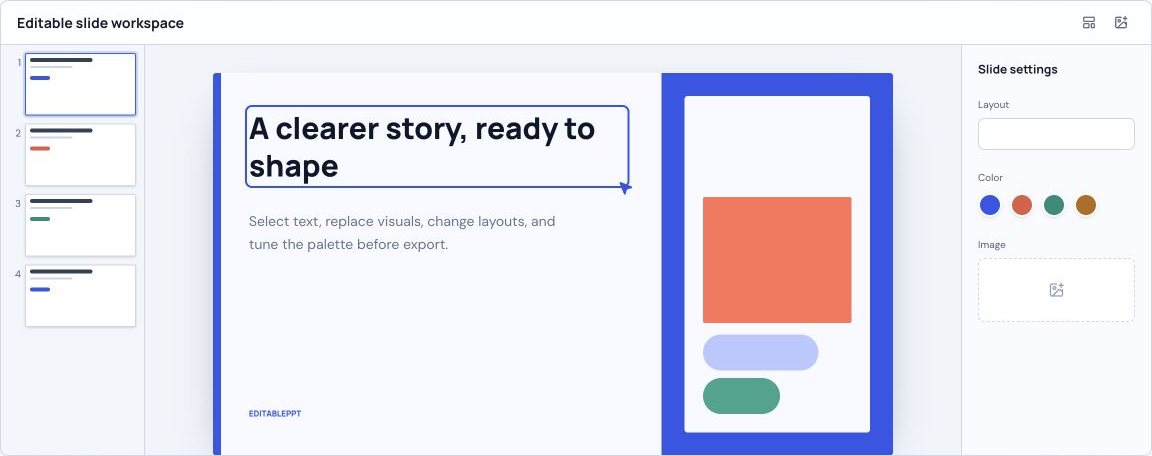
Place an interface screenshot on a slide, then add editable arrows, labels, highlights, and a presenter narrative.
Keep a design mockup visually intact while adding separate feedback, alternatives, and decision markers around it.
Turn a chart image, scan, or source excerpt into a presentation slide with editable citations and interpretation.
Convert software screenshots into walkthrough slides and add editable step numbers, instructions, and speaker notes.
Use exported slide images as reliable visual references when the original PowerPoint file is no longer available.
Place a scanned page or diagram on a slide, then layer editable explanations and highlights without changing the source.
Upload a PNG or JPG, choose Fit or Fill, and click Download PPTX. The image becomes a selectable object on a real PowerPoint slide. Choose Edit online if you also want to add separate text, shapes, charts, notes, or more slides before export.
No. This browser-local converter preserves the source as one image object and does not run automatic OCR. You can cover or replace regions with new text boxes in the editor, but the original text remains pixels until it is manually or separately reconstructed.
Yes. PNG and JPG files up to 20 MB can be previewed and converted to a one-slide PPTX without an account. The file is generated in your browser.
Not in this conversion workflow. The image is read locally to create the preview, editor draft, and PPTX. Be careful when you later share or upload the downloaded presentation elsewhere.
Not automatically here. Reliable chart editing requires the original values, labels, and chart type. If you know the source data, open the editor and rebuild the chart as a native chart rather than guessing values from pixels.
Choose Fit when every pixel must remain visible; you may see background space around the image. Choose Fill when the slide must be edge to edge; some content may be cropped if the image and slide use different aspect ratios.