
Tool comparison

EditablePPT vs NotebookLM: generate new slides, or fix the ones you have?

NotebookLM is good at generating slides from source material; EditablePPT is good at turning existing slides back into editable files. It's not either/or — often you'll use one after the other.

Full disclosure: we make EditablePPT, so we have a stake in this comparison. We've tried to be clear about strengths and weaknesses on both sides. Competitor details come from official sources, checked 2026-09-29.

The 4 things we look at

People care about different things, so there's no single best tool for everyone. Decide which of these matters most to you, then read on.

  1. 1. Can you actually edit it?

    Is the text in real text boxes, and can images be moved on their own — or is it one flat picture pasted on the slide?

  2. 2. How faithful is the text?

    Do font size, color, and position match the original, and does small, dense text come through correctly?

  3. 3. Where do you start?

    Do you already have finished slides, or only source material you need to turn into a deck?

  4. 4. How fast can you get going?

    How much do you need to learn, and how many steps until you have a usable PPT file?

Tool by tool

EditablePPT

Turns the slide images and PDFs you already have back into editable PowerPoint.

How it works
Upload an image or PDF, review the result online in a minute or two, fix text or move images, then download the PPTX.
Best for
Anyone with screenshots, image-only decks, or exported PDFs who needs to change a few words or swap an image.
Honest weakness
It currently handles PNG and JPG images (up to 8 MB each) and PDFs. Brush or outlined display lettering becomes a regular font, and dense small text is occasionally misread — give it a quick look against the original before downloading. It won't create content from scratch.
Choose it when
Your slides are already done (or NotebookLM already made them) and you just need the PDF or images turned into editable text and images.
Gemini Notebook / NotebookLM

Google's AI notebook. It can generate a slide deck from the sources you add.

How it works
Add documents, web pages, and other sources to a notebook, have it generate slides, then download as PDF or PowerPoint.
Best for
People who have source material but no slides yet and want a quick first draft.
Honest weakness
It creates new content rather than reproducing slides you already have. Parts of the downloaded PPTX may be flat images, so open it and check before planning word-by-word edits.
Choose it when
You don't have slides yet and need a first draft from a pile of sources, fast.

The differences at a glance

CompareEditablePPTGemini Notebook / NotebookLM
Starting pointImages or PDFs you already haveThe sources you add (documents, web pages, and more)
What you getA downloadable PPTX, with online editing before downloadA newly generated deck, downloadable as PDF or PowerPoint
EditabilityRecognized text becomes text boxes; illustrations become separately movable imagesPPTX download available; open the file to see whether every element is editable
Chinese text & display letteringFaithful body text is a priority; display lettering currently becomes a regular fontContent is reorganized from your sources rather than copying an existing page's look
Learning curveJust upload — no new design tool to learnEasy to start, great for starting from zero

A real example: a busy Chinese-language poster

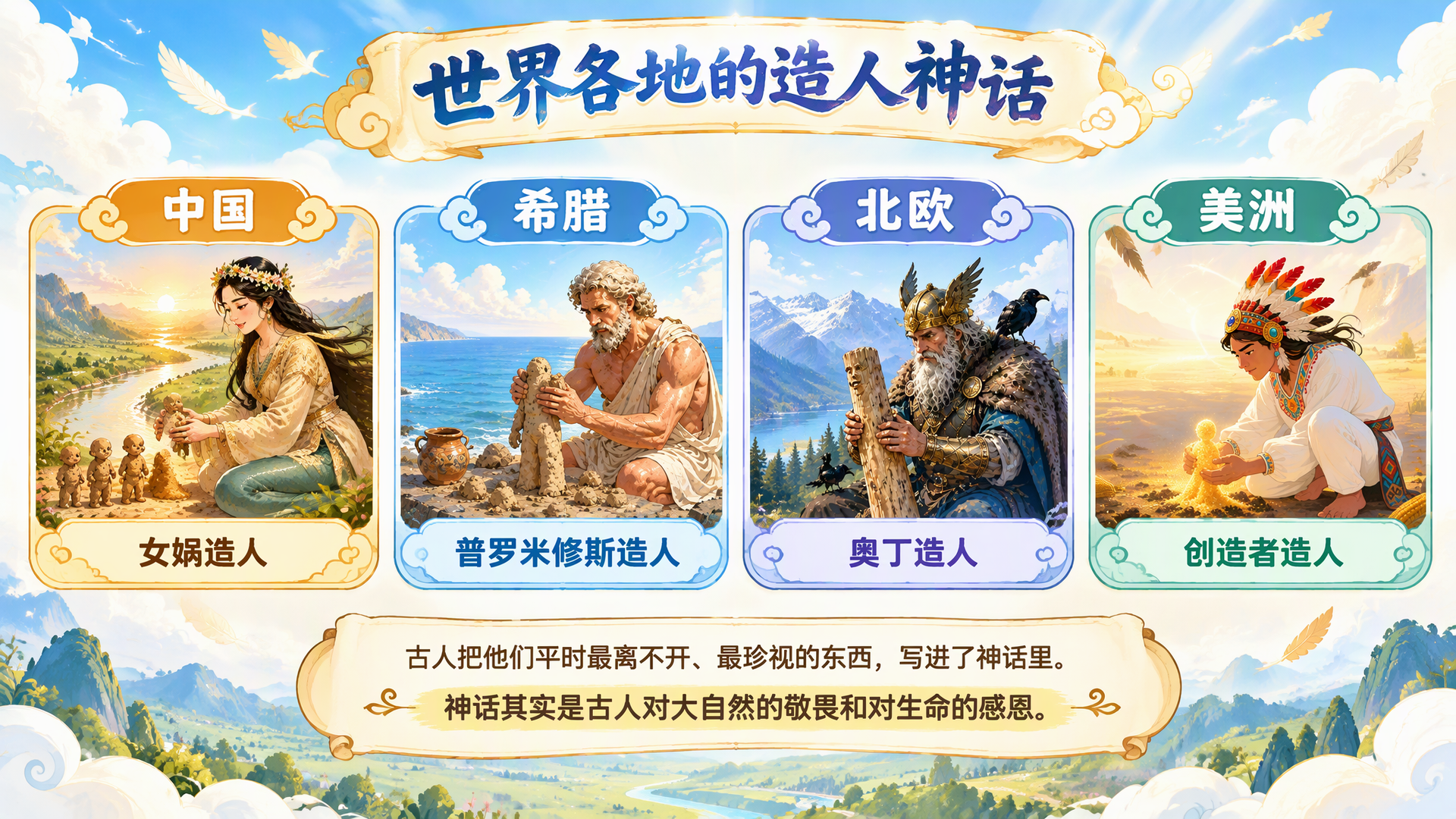
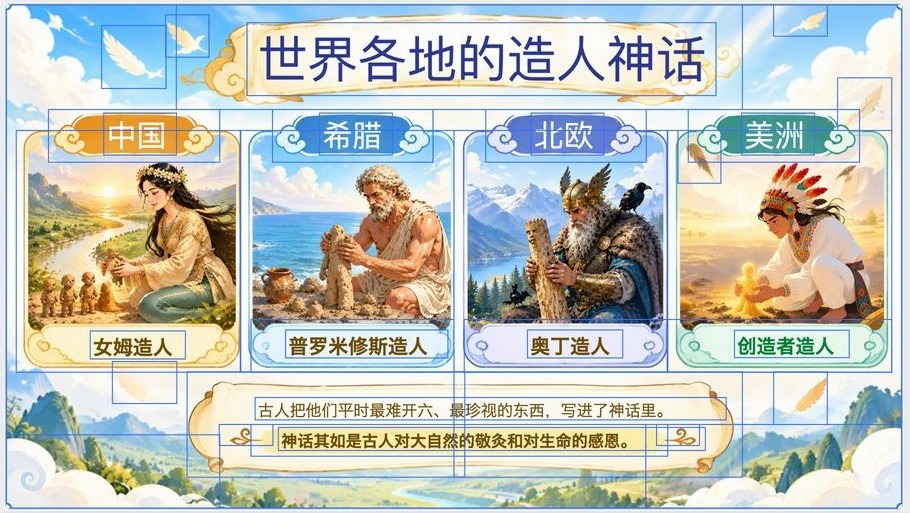
This 16:9 image has four character illustrations, a brush-lettered Chinese title, and small body text. On the left is the original; on the right is the EditablePPT result opened in the editor with everything selected (⌘A), with no manual fixes. Every blue box is a layer you can edit on its own.

Mythology-themed original: four character illustrations for China, Greece, the Nordics, and the Americas, under a brush-lettered Chinese title
Original image
The converted result selected in the EditablePPT editor: title, region names, card labels and body text are separate text boxes; illustrations and decorations are separate images, each with a blue selection box
EditablePPT editor: all 38 layers selected (11 text boxes, 27 images), no manual edits
  • All 11 pieces of text — title, region names, card labels and both body lines — are text boxes you can retype, recolor and resize.
  • The four illustrations, card frames, feathers and scroll ornaments became 27 separate images you can select, move and resize individually.
  • Not perfect: the brush-lettered title became a regular font, and a few characters in the text were misread. Because they're text boxes, each takes seconds to fix in the editor, but we think you should know up front.

Decide in 30 seconds

  • I have sources but no slides

    Use NotebookLM to generate a first draft.

  • NotebookLM made my slides, but I can't edit some of the text

    Give the exported PDF or images to EditablePPT to get editable text and images.

  • I already have finished slide screenshots or a PDF

    Go straight to EditablePPT — no need to generate anything.

Try it with an image

Frequently asked questions

Can NotebookLM download PowerPoint directly?

Yes. Google's help docs list both PDF and PowerPoint downloads. Open the file first — if it's editable enough for you, there's no need to convert.

When would I still need EditablePPT?

When all you have is a PDF or images, or when the text in the downloaded file can't be edited.

Can EditablePPT connect to my NotebookLM account?

Not at the moment. Upload the exported PDF to PDF to PPT, or the images to Image to PPT.

References

Competitor features are as described in official sources, checked 2026-09-29, and may have changed since. This page does not imply any partnership or endorsement.